Design Beautiful, Budget-Friendly Branding with Canva
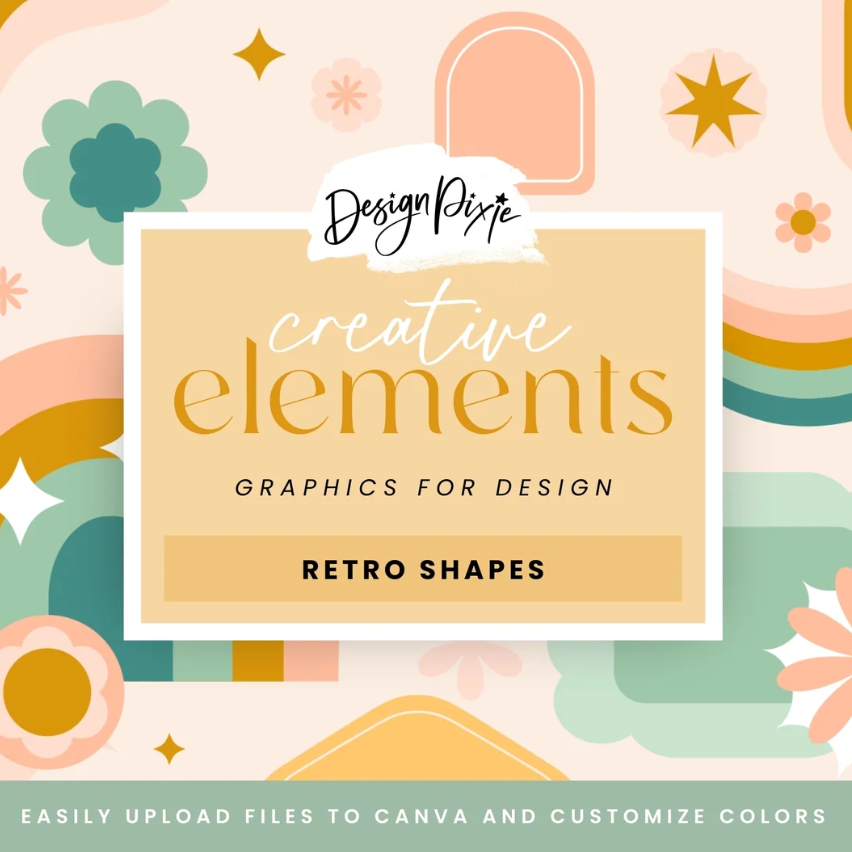
Design Pixie offers gorgeous premade templates
A polished, recognisable brand doesn’t need a big budget or a design degree. Canva can help you create a consistent visual identity for your small business, but good branding starts with clear choices, not a pile of templates and add-ons.
Choose a few colours, fonts and design details that suit your business, then use them consistently. Start by setting a simple brand direction before you open Canva.
If Canva feels awkward to use, Malshi offers Canva document editing through Fiverr.
Key Takeaways
- Set a clear brand direction first, then choose a small colour palette and one or two fonts to use consistently.
- Create only the assets your business needs, such as a logo, web banner or social graphics, rather than buying a bundle you may not use.
- Canva’s free tools can support a budget-friendly identity, but logo templates and stock graphics aren’t exclusive.
- If Canva feels difficult, consider hiring a designer to save time; check what the fee includes and whether the artwork is exclusive.
- Keep approved colours, fonts and logo files together, then use Canva’s brand asset tools to help maintain consistency.
How to design your own branding beautiful on a budget with Canva

Start with a few clear decisions, then build only the designs your business needs. A simple brand system can make your website, social posts and printed materials feel connected without a large collection of paid assets.
Write a short brand brief before opening Canva
Before choosing a template, write down your business name, audience and purpose. Add three words that describe how you want people to feel when they encounter your brand, such as welcoming, practical or playful. These notes give you a clear reference when you start making design choices.
Then use the brief to judge colours, fonts and images. For example, a calm, nature-focused business may need a different look from a lively children’s activity service. You don’t need a long strategy document; a few specific details can help you avoid choosing designs simply because they look attractive.
Choose a small colour palette and a pair of typefaces
Pick a limited palette, perhaps one main colour, one supporting shade and a neutral background. Check that text stands out clearly against each colour, especially on small screens. A combination that looks good in a large Canva design may be harder to read on a phone.
Use one or two readable typefaces, with a clear role for each. For instance, choose a distinctive font for headings and a simpler one for longer text. Then repeat those choices across your designs. Consistency comes from using a few decisions well, not from buying a large bundle of brand assets.
Start with a template, then make it feel like yours
Canva templates give you a useful layout to work from, so you can spend less time arranging elements. Replace the sample wording with your own, apply your chosen colours and typefaces, and remove anything that doesn’t suit your business. A template should make the first draft easier, not dictate your final look.
Design Pixie’s Canva elements and creative logo templates are possible starting points if their style fits your business. Treat them as adaptable designs, not exclusive or automatically trademark-ready artwork. Before using any downloaded element, read its licence and check that it covers your intended use. Canva also explains that its library content comes with non-exclusive design rights.
Keep your first set practical: a logo or wordmark, a web banner and a social graphic may be enough. Choose templates that help you make work you’ll actually use, rather than adding designs just to fill a folder.
Build a consistent brand kit for everyday business designs

Turn your logo, colours and type choices into a small set of repeatable designs. When the same visual choices appear across your website, social posts and price lists, customers can recognise your business without every item looking identical. Keep the system simple enough to use, and it will be easier to maintain.
Create only the logo versions and assets you need
Start with a main logo for places with enough room, such as your website header or a printed flyer. Make a simpler version for small spaces, perhaps a compact wordmark or a mark without a strapline. Check that both versions remain clear when reduced, since fine details can disappear on a phone screen or small label.
Next, choose a few practical assets that match the way you work. A web banner, social graphic or price list template may help if you update those materials regularly. Design Pixie’s ready-made options include items such as price list templates, but choose only designs that suit your style and the software you use.
Optional matching packages can save time during a website refresh or help you create regular social posts. However, they add little value if you won’t use the layouts. Before buying, check what the package includes and whether its licence covers your intended use. A focused set of useful files is easier to manage than a folder full of designs you never open.
Save reusable layouts and check how they look in use
Keep an approved master design for each format you use often, then duplicate it when you need a new post, price list or banner. Change the wording and images, but keep the established colours, fonts, spacing and logo placement. Canva’s Brand Kits help page explains how to organise official logos, colours, fonts and other assets in one place.
Apply the same choices across your website and business materials, while adjusting the layout to fit each purpose. A social graphic may need a short headline, whereas a price list needs clear service names and readable prices. Consistency comes from repeating the visual rules, not forcing every design into an identical shape.
Before publishing, preview each design at its actual size and on both light and dark backgrounds. Check that small text stays readable, the logo remains distinct and the colours provide enough contrast. If you use an image behind text, make sure the words still stand out after cropping on a mobile screen. These checks help a tidy master layout work just as well in everyday use.
Keep Canva branding affordable, useful and safe to use
Spend only where a paid feature saves time or improves work you’ll use regularly. Canva Free can support a basic identity built from your own artwork, fonts and simple shapes. The key is to keep your choices consistent and avoid paying for assets you don’t need.
When Canva Free is enough, and when Pro may be worth it
Start with Canva Free if you already have a clear palette and type choices, and can make the artwork you need with basic shapes and fonts. That can be enough for a simple visual identity and everyday materials such as a web banner or social graphic. You don’t need a subscription just to make your designs look considered.
Canva Pro may suit you if you regularly create materials and want reusable brand controls or access to premium assets. Its Brand Kits can keep your brand elements together, which may save time when you make new designs. Canva’s UK pricing page displayed an annual price of £100 in the research for this article; check Canva’s plan details before subscribing, as prices and offers can change. Pay for Pro when the time saved is worth the cost, rather than assuming it’s essential.
Understand template licences and logo ownership
Use templates and library graphics for everyday marketing, but don’t present them as exclusive logo artwork. Canva’s library content is non-exclusive, and other people can use the same elements. A logo built from a template or stock graphic may not be suitable for trademark registration.
If you need a mark that’s original and potentially registrable, use your own artwork or commission a designer to create an original design. For other uses, check Canva’s content licensing guidance and confirm the licence covers how you plan to use each asset. This distinction helps you save on routine designs without relying on a logo you can’t claim as your own.
Know when to get affordable design help
If Canva editing takes more time than you can spare, handing over a tricky document may be a practical choice. You could explore Canva editing help on Fiverr as one possible lead. Agree what needs changing and what files you’ll receive before work begins, so the result fits your existing brand.
You can also learn the software at your own pace through Design Pixie’s Canva tips. Use tutorials for tasks you want to handle yourself, and ask for help when editing starts taking time away from running your business. That keeps your spending focused on useful designs and support you’ll actually use.
Frequently Asked Questions
Canva can make everyday branding more manageable, but a few practical questions often remain once you’ve chosen your colours and started designing. Use these answers to make sensible decisions about your files, templates and next steps.
Can I create a professional-looking brand with Canva Free?
Yes. Canva Free can help you create polished designs when you make clear choices and apply them consistently. Start with original artwork, simple shapes and fonts, then check that the result stays readable at different sizes. A paid plan can add convenience and premium content, but it won’t fix a design that lacks a clear direction. Upgrade only when a specific feature would save you time or support work you regularly produce.
Can I use a Canva logo template as my exclusive business logo?
No. A template-based logo isn’t exclusive, so another business may use the same design, and it shouldn’t be treated as ready for trademark registration. Canva explains that a logo intended for a trademark should use original artwork, or Canva fonts and simple shapes, rather than library graphics. Read Canva’s guidance on trademark logos, and consider commissioning original artwork if ownership protection matters to your business.
Do I need to buy every matching Canva template?
No, choose designs that match materials you publish regularly. A small business with a website might need a logo, a banner and a social post layout, whilst a business that rarely posts online may not need a social template set. Before buying, check which software you need and what the licence permits. Matching designs can help with consistency, but unused files add cost without making your brand clearer.
What should I do if I find Canva difficult to edit?
Start with a tutorial for the exact task that’s causing trouble, such as changing a font or moving an image. Canva’s learning resources can help you learn at your own pace; for a fiddly document, ask someone to make the specific edits instead. You can seek editing help through Malshi’s Fiverr page. Review the finished design yourself and approve its colours, wording and layout before publishing.
How can I keep my branding consistent across different designs?
Save your approved colours, fonts and logo files somewhere easy to find, and keep a master version of each layout you use often. Duplicate those layouts for new designs instead of starting from a blank page each time. Before publishing, compare the new item with your saved choices and check that the logo and text still work at its final size. This makes updates easier without making every design look identical.
Conclusion
Build your brand with a few deliberate choices, then use them consistently. A clear, attractive identity comes from useful designs that fit your business, not from buying every matching extra.
Start with one practical Canva design and refine it as your business grows. Use Canva tips if you want to learn, or seek editing help when it solves a real problem. Spend only where it saves time or gives you something your business needs.